

How to Choose Anaglyph Glasses for BiColor – Vision Trainer
BiColor – Vision Trainer uses colored anaglyph glasses to show selected game elements differently to each eye. This guide explains which glasses are compatible, how to choose a comfortable pair, and how to calibrate the image for your lenses and monitor.
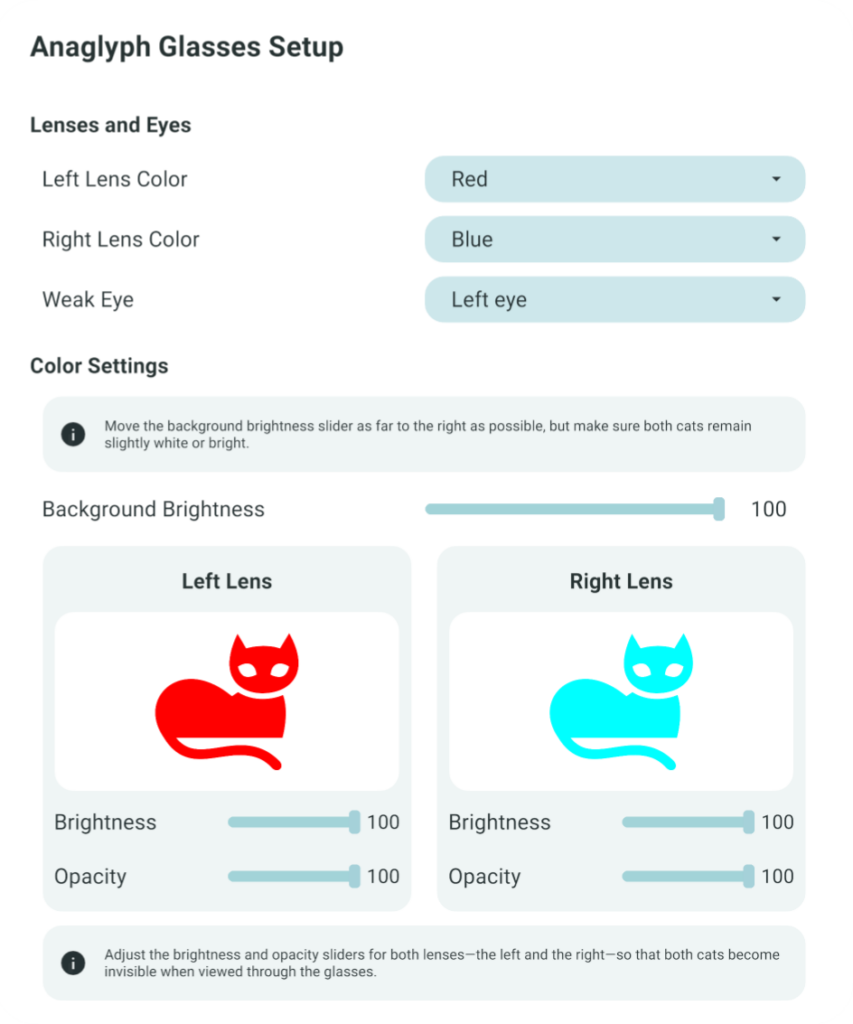
BiColor supports red, blue, and green lens filters. You can select the color and position of each lens separately in the built-in Anaglyph Glasses Setup.
What Are Anaglyph Glasses?
Anaglyph glasses use two lenses with different color filters. Each filter reduces or blocks selected colors displayed on the screen. This allows BiColor to control which game elements are visible through each lens.
Although anaglyph glasses are often sold as 3D glasses, BiColor uses the same color-filter principle for eye-specific visual presentation rather than a cinema-style 3D effect. Selected elements in the mini-games are displayed in colors that correspond to the user’s glasses and setup.
Which Anaglyph Glasses Work with BiColor?
BiColor currently supports three selectable lens colors: Red, Blue, and Green. The color of each lens can be selected independently, allowing the program to match different lens combinations and left-right orientations.
Most users will choose red-blue or red-green anaglyph glasses. For the most predictable setup, the physical lens colors should match the colors available in BiColor as closely as possible.
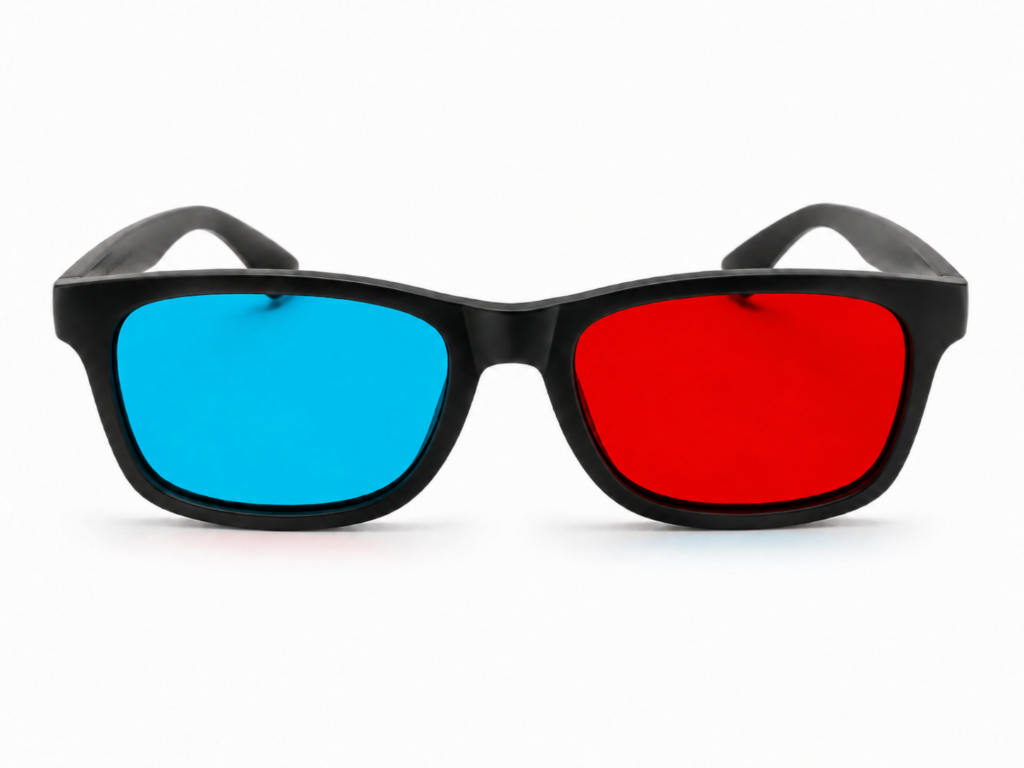
Red-Blue and Red-Cyan Glasses
Red-blue and red-cyan glasses are fully supported by BiColor. Select Red for one lens and Blue for the other, then match their left-right positions to your physical glasses.
Glasses with the red lens on either the left or right side can be used because each lens is configured separately in the program.
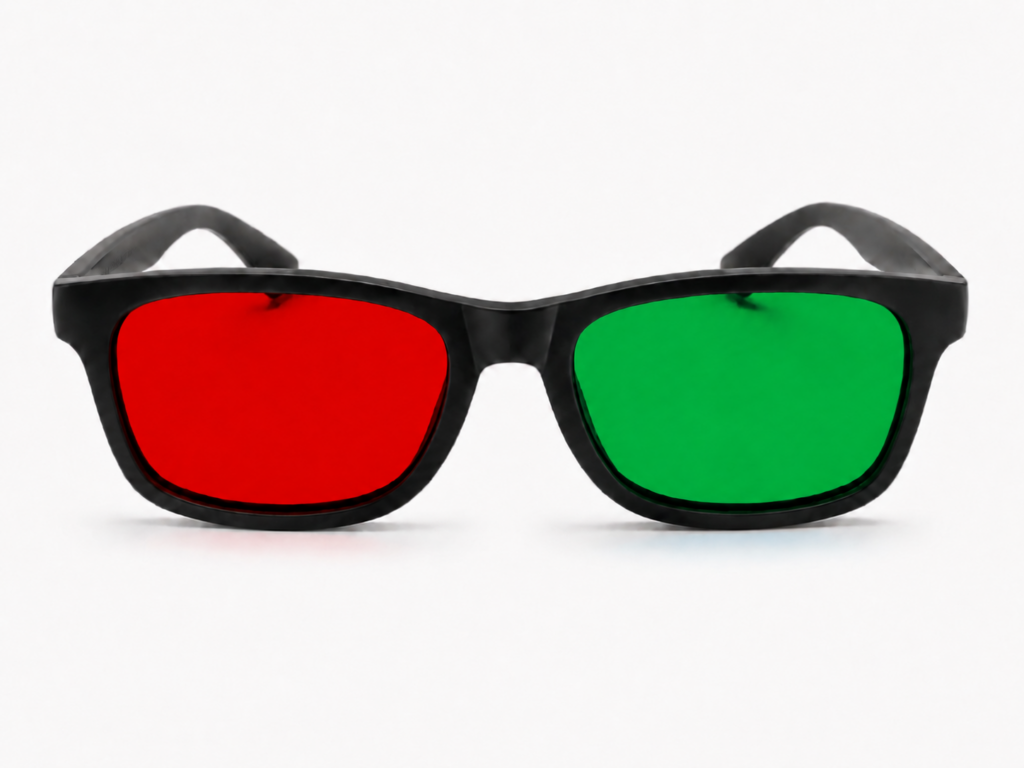
Red-Green Anaglyph Glasses
Red-green glasses are also fully supported. Select Red and Green in the setup menu and make sure their positions match the lenses in your glasses.
As with red-blue glasses, the red lens can be positioned over either eye as long as the BiColor settings use the same arrangement.
Paper, Plastic, or Clip-On Glasses?
The frame type does not change how BiColor works, but it can affect comfort and convenience. Choose a frame that matches how often the program will be used and whether the user already wears prescription glasses.
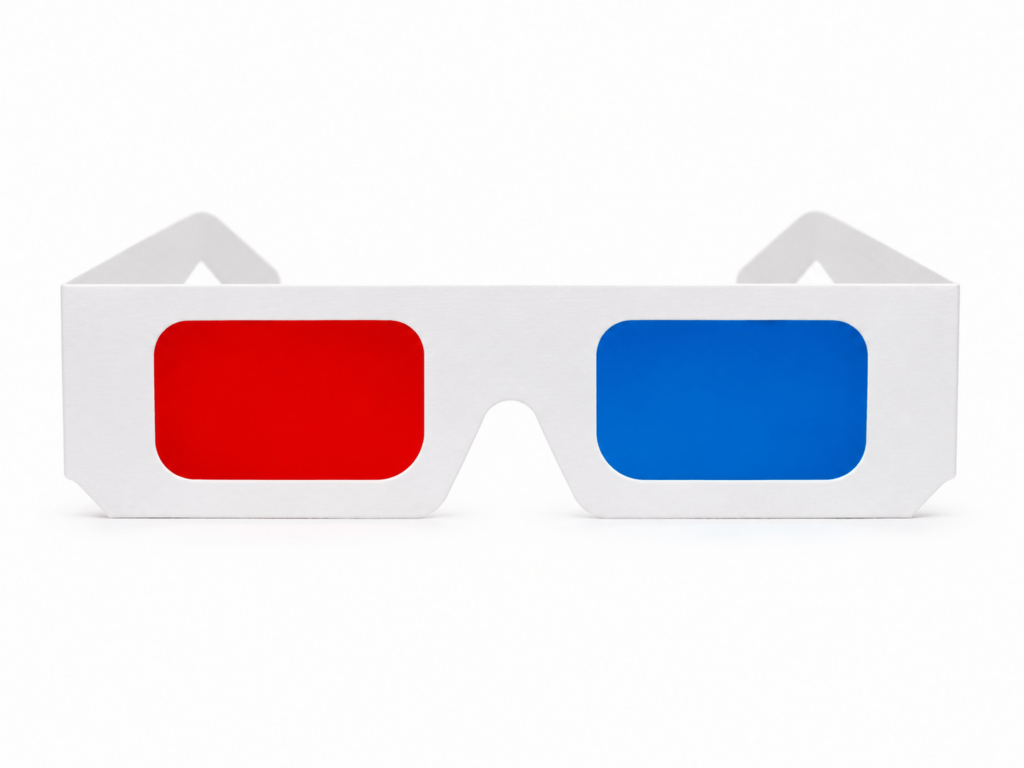
Paper Anaglyph Glasses
Paper glasses are inexpensive and easy to find. They are a practical option for testing BiColor or for occasional use.
Their main disadvantages are lower durability and reduced comfort during repeated sessions.
Plastic-Frame Glasses
Plastic-frame anaglyph glasses are usually more comfortable and durable than paper glasses. They are a good choice if BiColor will be used regularly for short at-home visual practice sessions.
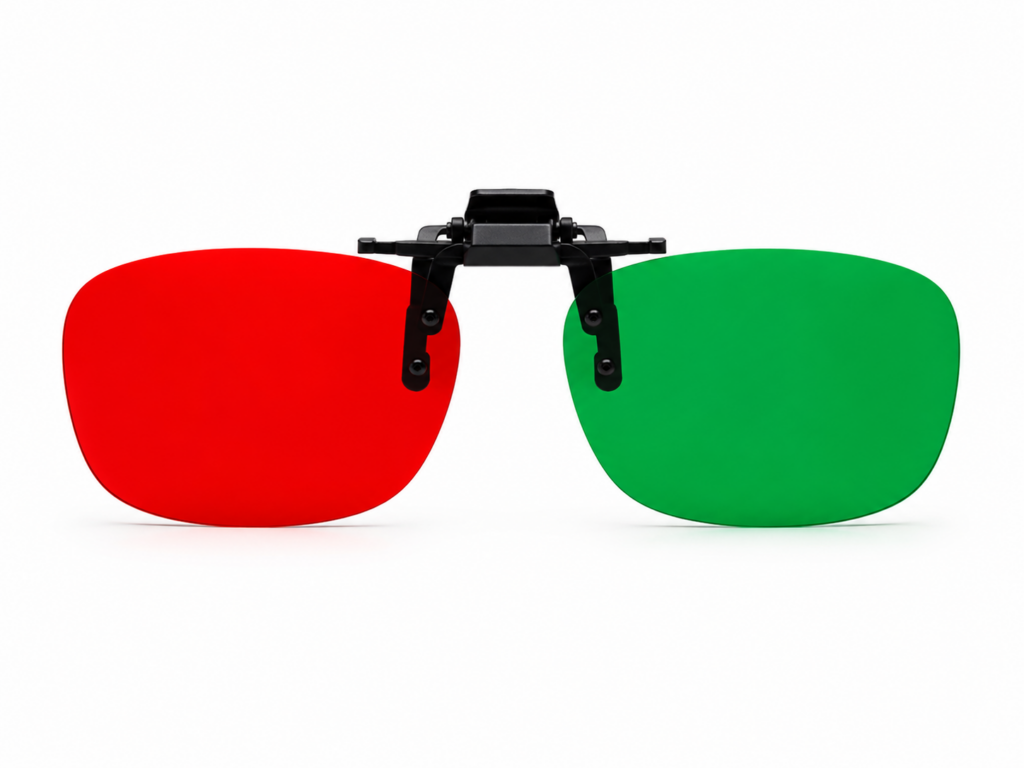
Clip-On Anaglyph Glasses
Clip-on anaglyph glasses attach directly to prescription glasses. They are often more convenient than wearing two separate frames. Many clip-on models can also be flipped up when the colored filters are not needed.
How to Set Up and Calibrate Anaglyph Glasses in BiColor
Before starting a mini-game, open the Anaglyph Glasses Setup menu. It allows you to match the image to your lens colors, lens positions, weaker eye, and display.
This process calibrates the displayed colors for your glasses and monitor. It is not a medical test and does not determine a treatment plan.
Common Questions About Anaglyph Glasses
Start Game-Based Visual Practice with BiColor
Get BiColor – Vision Trainer on Steam or from the Microsoft Store and explore interactive lazy eye games using a Windows PC and compatible anaglyph glasses.


One-time purchase · No subscription · Windows PC · Anaglyph glasses required